 Technology & Digital Learning
Zoom 101
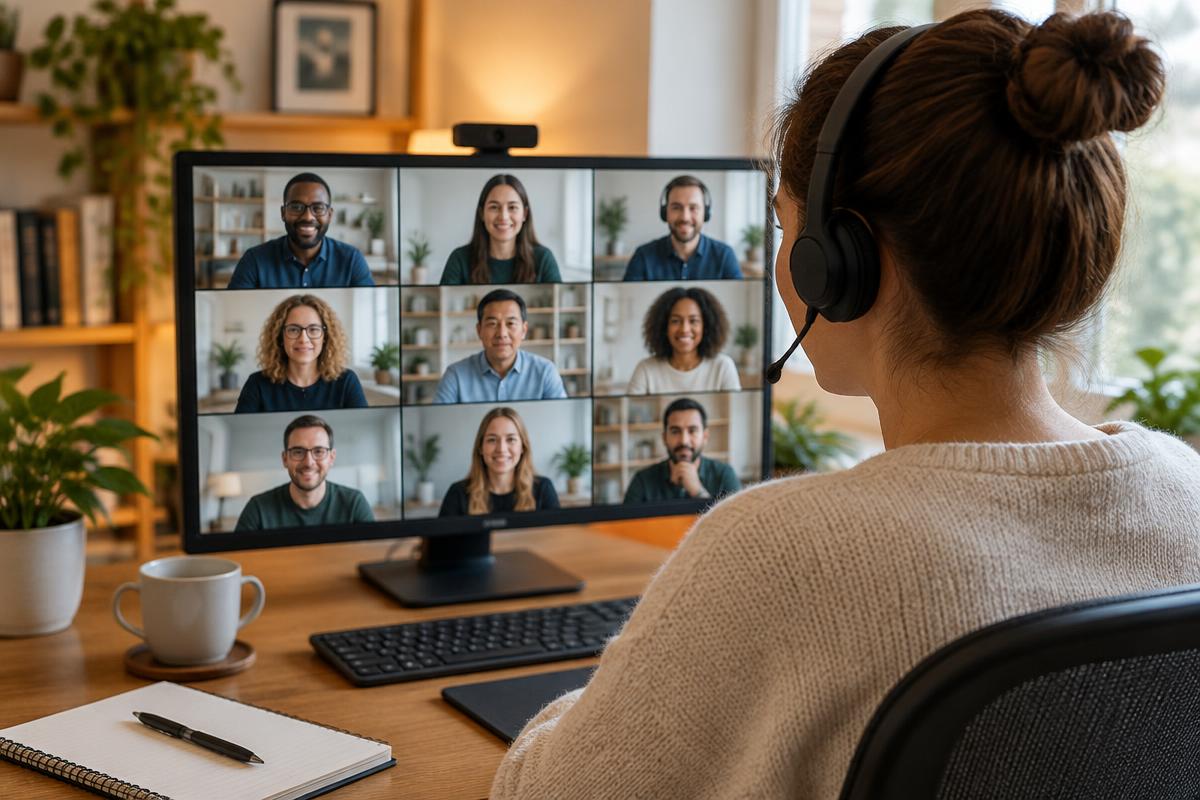
The way we communicate as a society has undergone massive changes throughout the years. Zoom allows us to reach out and collaborate easily, affordably, and reliability no matter where others are. It can be used in both a professional and personal setting. Our Zoom 101 course provides a thorough look at Zoom’s suite of communication tools and services and provides steps for setting up, connecting, making calls, and hosting meetings.
Course details+
The way we communicate as a society has undergone massive changes throughout the years. Zoom allows us to reach out and collaborate easily, affordably, and reliability no matter where others are. It can be used in both a professional and personal setting. Our Zoom 101 course provides a thorough look at Zoom’s suite of communication tools and services and provides steps for setting up, connecting, making calls, and hosting meetings.
After completing this course, you should be able to:
- Describe how to communicate and collaborate with others by using Zoom
- Identify how to run reports and webinars with Zoom
- Recall steps for using Zoom in an organization
- Recognize how to make calls with Zoom
Syllabus & lessons+
Module 1 - Communicating and Collaborating in Zoom
Module 2 - Becoming a Zoom Power User
Module 3 - Using Zoom in the Organization
Module 4 - Tips and Resources
Zoom 101 Module 1
Communicating and Collaborating in Zoom
Zoom’s tools let people of all ages and skill levels improve how they communicate. In our first module, we will discuss the benefits and features that Zoom offers. We also go through the steps for setting up Zoom and connecting with others via Zoom meetings.
- Zoom’s Tools
- Zoom’s Core Services
- Setting Up Zoom
- Connecting with Others via Zoom Meetings
- Getting to Know the Other Side of Zoom Meetings & Chat
Zoom 101 Module 2
Becoming a Zoom Power User
In this module we learn how to customize Zoom to your liking. You will be introduced to the Zoom app, third-party apps, how to run reports, and how to start and run a webinar. We will also discuss how to customize your notifications and how to create group chats.
- Customizing Zoom
- Managing Users Via IM Groups
- Running Reports in Zoom
- Introducing Zoom App
- Running a Webinar
Zoom 101 Module 3
Using Zoom in the Organization
Configuring Zoom’s security settings is an important step for protecting your communications in Zoom. In this module we discuss how to protect yourself and your organization while using the application. We also explore how to use Zoom Rooms for meetings and how to make calls with Zoom Phone.
- Protecting Your Communications in Zoom
- Configuring Zoom
- Introducing Zoom Rooms
- Making Calls with Zoom Phone
Zoom 101 Module 4
Tips and Resources
In our final module, we discuss Zoom voice enhancements, tips, resources, and fun way to socialize via Zoom. We also debunk some popular myths about Zoom.
- Getting Everyone in Zoom Together
- Voice and Enhancements
- Zoom Tips
- Common Myths about Zoom
- Socializing via Zoom
Instructor+
Marissa Lynn
Marissa has over 15 years of professional experience in various aspects of the education field. She has a Bachelor’s degree from the University of South Florida in Technical Writing and a Master’s degree from the University of North Dakota with an emphasis in Curriculum and Early Education principles. She spent several years as an educator at not for profit education programs and is currently an instructional designer.
Prerequisites+
No prerequisites required.
Instructional materials+
All materials included in course.
System requirements+
Internet Connection
- Broadband or High-Speed - DSL, Cable, and Wireless Connections
*Dial-Up internet connections will result in a diminished online experience. Classroom pages may load slowly and viewing large audio and video files may not be possible.
Hardware Requirements
- Processor - 2GHz Processor or Higher
- Memory - 1 GB RAM Minimum Recommended
PC Software Requirements
- Operating Systems - Windows 10 or higher
- Microsoft Office 2019 or higher. Also, you could use a general Word Processing application to save and open Microsoft Office formats (.doc, .docx, .xls, .xlsx, .ppt, .pptx)
- Internet Browsers - Google Chrome is highly recommended
- Cookies MUST be enabled
- Pop-ups MUST be allowed (Pop-up Blocker disabled)
- The Kindle Reader App or VitalSource Bookshelf App are needed for many of our courses (No special equipment needed. This can be downloaded for FREE onto your computer.)
- PowerPoint Viewer (if you do not have PowerPoint)
- Adobe PDF Reader
- QuickTime, Windows Media Player &/or Real Player
MAC Software Requirements
- Operating Systems - Mac OS version 11 or higher
- Mac office programs or a Word Processing application to save and open Microsoft Office formats (.doc, .docx, .xls, .xlsx, .ppt, .pptx)
- Internet Browsers - Google Chrome is highly recommended
- Cookies MUST be enabled
- Pop-ups MUST be allowed (Pop-up Blocker disabled)
- The Amazon Kindle Reader App or VitalSource Bookshelf App are needed for many of our courses (No special equipment needed. This can be downloaded for FREE onto your computer.)
- PowerPoint Viewer (if you do not have PowerPoint)
- Adobe PDF Reader
- Apple QuickTime Media Player
More in Technology & Digital Learning
Introduction to ChatGPT
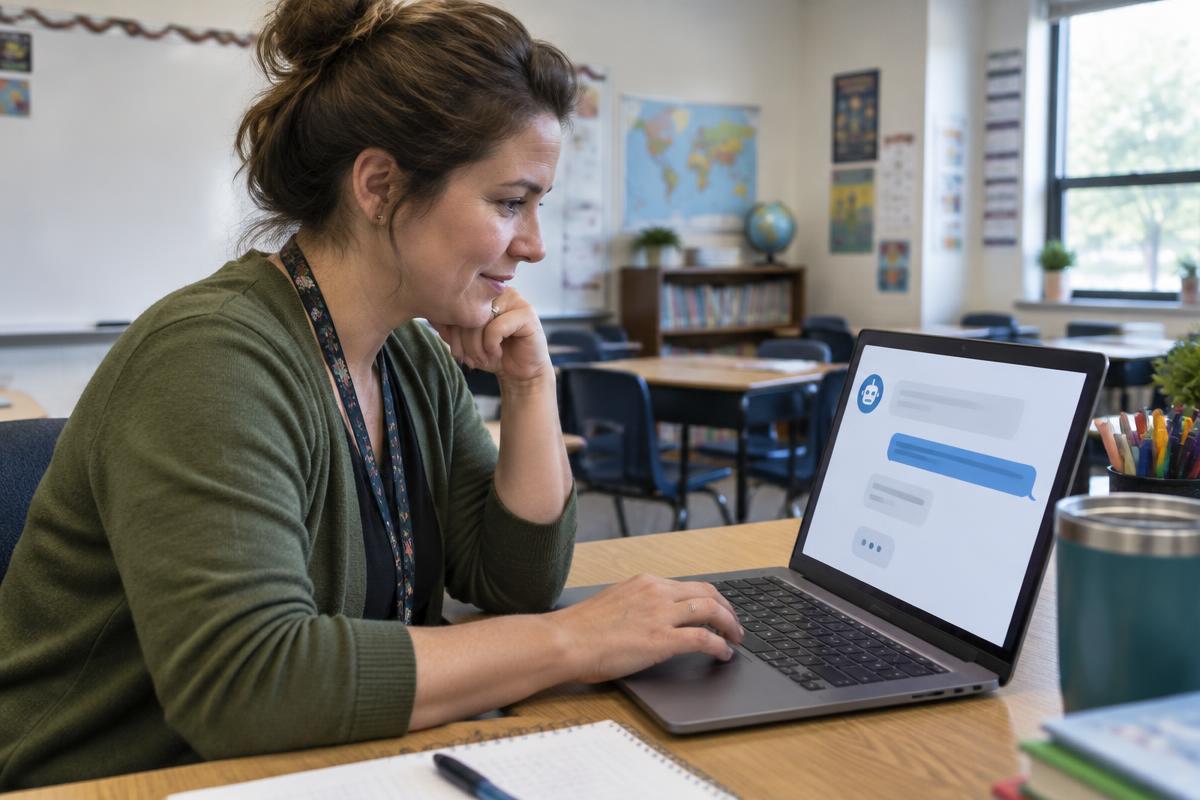
By taking our Introduction to ChatGPT course, you will be introduced to the fundamentals of how to use ChatGPT in work and everyday settings. Among many things, we cover the basics of where to access it, how to get started with its user interface and how to create refined prompts. By learning the fundamentals, you can apply this knowledge into educational and business settings.
Introduction to Google Classroom
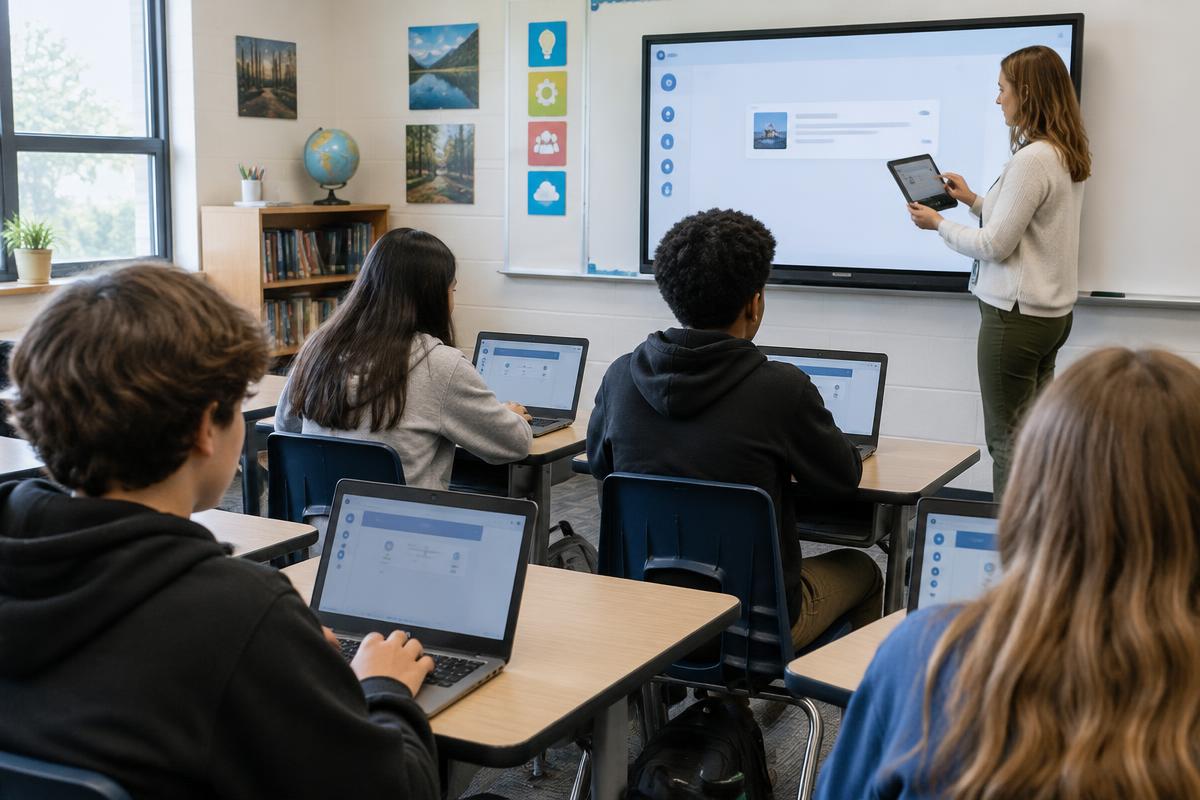
Google has changed the face of education in ways few people could have imagined it would. The Google suite of classroom tools are so popular because they are free for schools to use, are accessible, and make sharing and collaborating incredibly easy and fun. Our Introduction to Google Classroom course provides a framework for using technology to engage your learners which in turn will greatly enhance their learning experiences.

K-12 Moving to Virtual Learning
Online education is changing the way that students access and receive high-quality instructional experiences around the world. With online instruction, teachers have a vast array of technology at their fingertips. Our K-12 Moving to Virtual Learning course provides real world tools and techniques for the design and implementation of quality, engaging, and interactive learning experiences for students. We discuss communication tools that foster interaction and collaboration between students and teachers, as well as how to support struggling learners, learners with special needs, and how to properly use assistive technologies.